
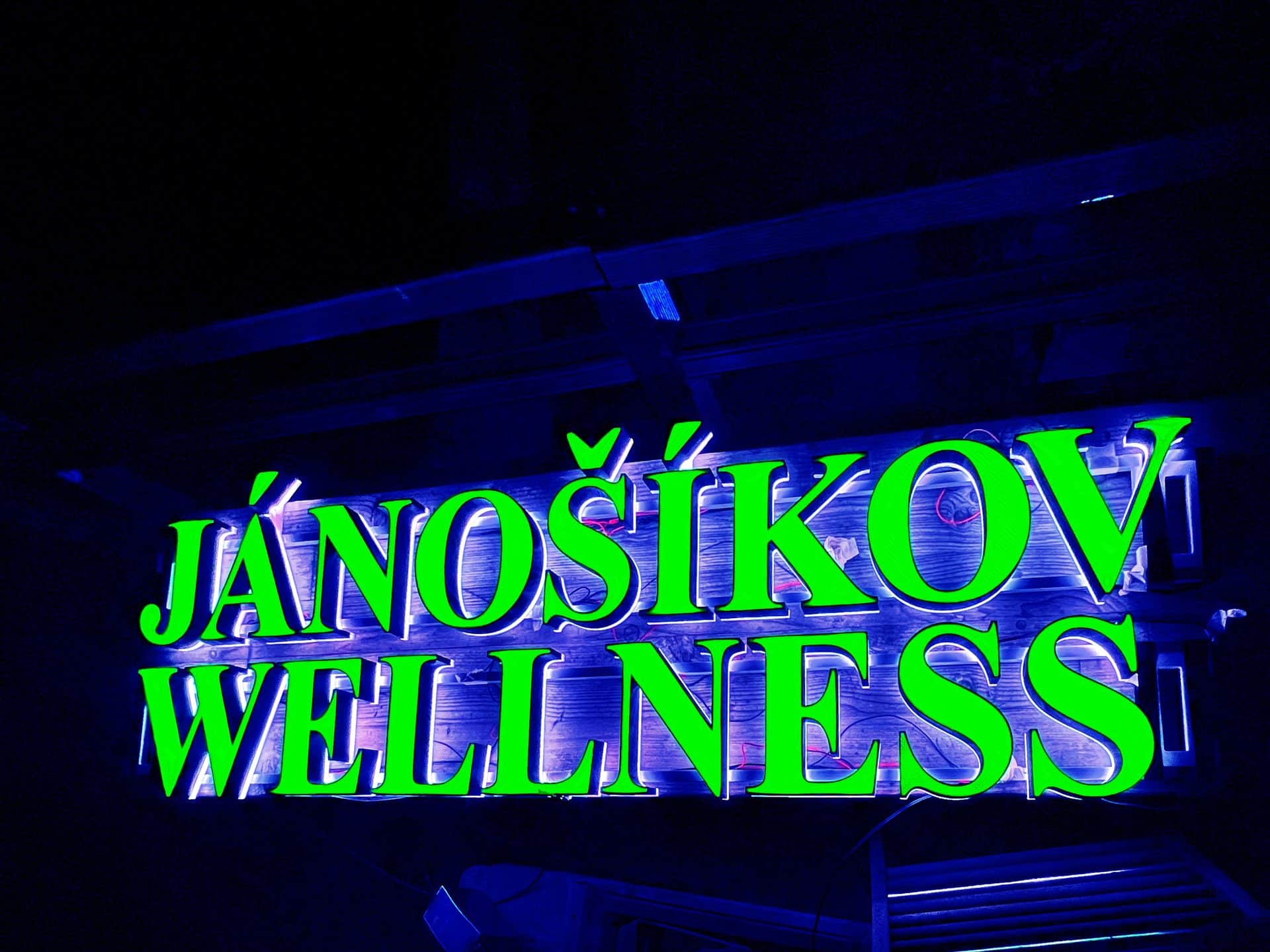
Channel letters for 3D printing, modelled in Autodesk® Fusion 360™
Channelier — probably the best channel letter add-in for Autodesk® Fusion 360™. Definitely the only one.
Type a text or pick a vector drawing. Channelier builds walls, glass, glass supports and bottom as a native, editable Autodesk® Fusion 360™ model, ready to print.
The Channelier Suite
Three Autodesk® Fusion 360™ add-ins, one way of building channel letters. Start free, upgrade when you need more.

Font Channelier Free
Channel letters from text, with a curated list of fonts. Free.

Font Channelier Hobby
Any font installed on your computer, character spacing and position, socle and liner bottoms.
Free trial available on the Autodesk App Store.

Glyph Channelier
Any shape you can draw: logos, symbols, DXF and SVG files. Broken curves are repaired automatically.
Free trial available on the Autodesk App Store.
A real Autodesk® Fusion 360™ model, not a dead mesh
Web generators give you an STL file and that is the end of it. Channelier builds bodies and components in your Autodesk® Fusion 360™ design: fillet them, change them, export STEP or STL, or run CAM.
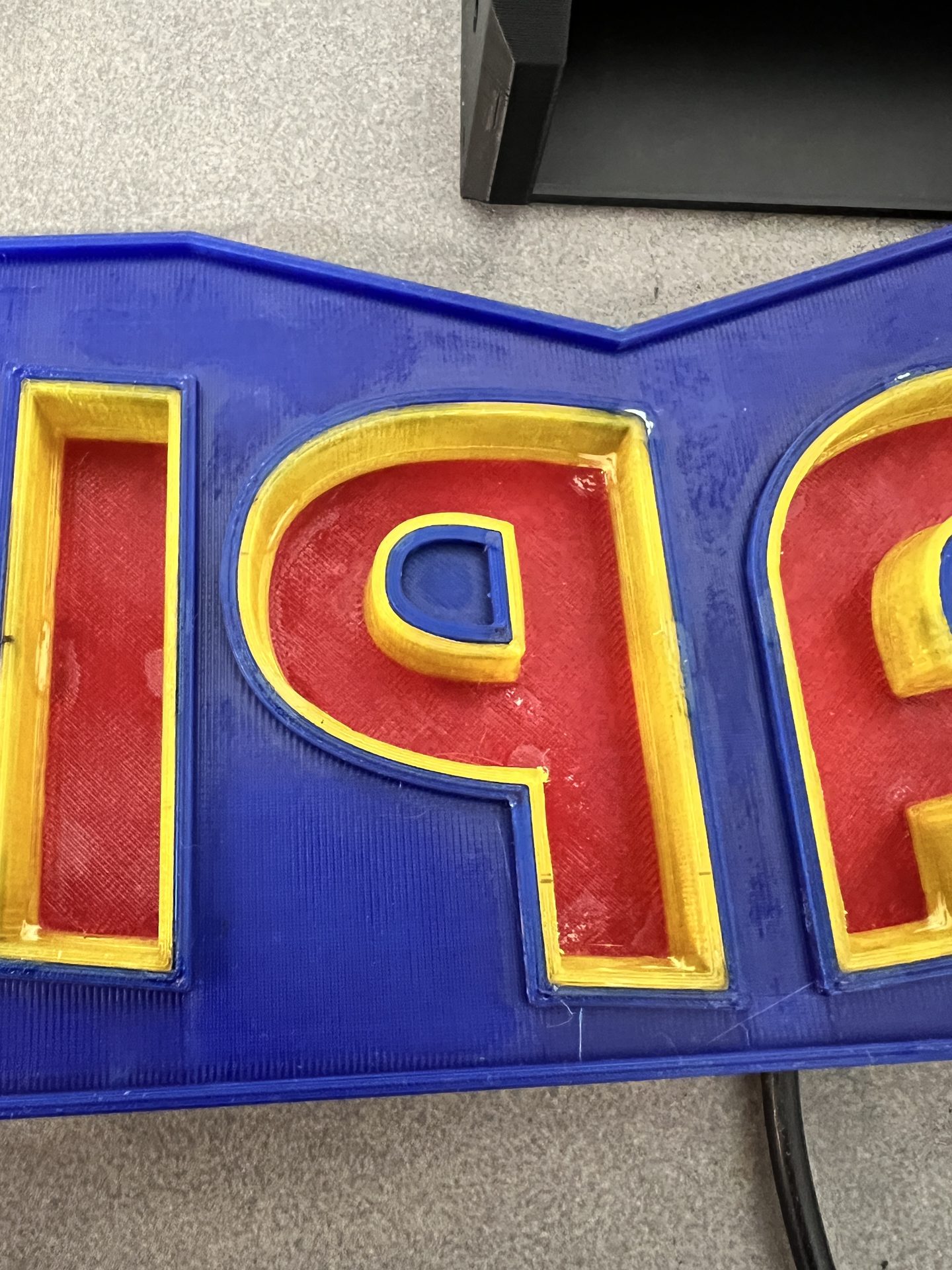
- Walls, glass, glass supports (capital), bottom and socle as separate parts
- Live preview while you change the settings
- Printing gaps between parts built in
- One colour per part, so the model looks like the finished sign

Made with Channelier
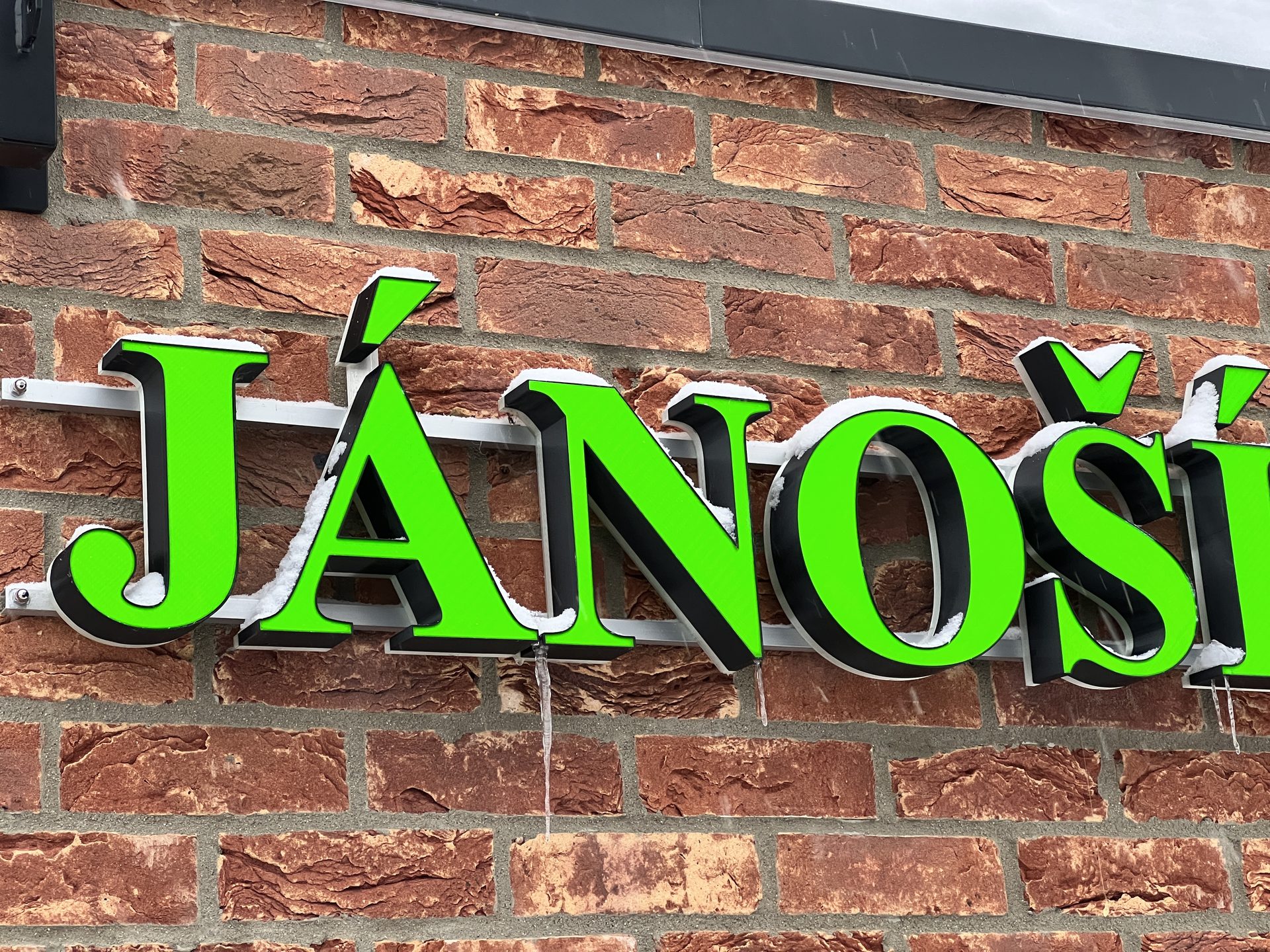
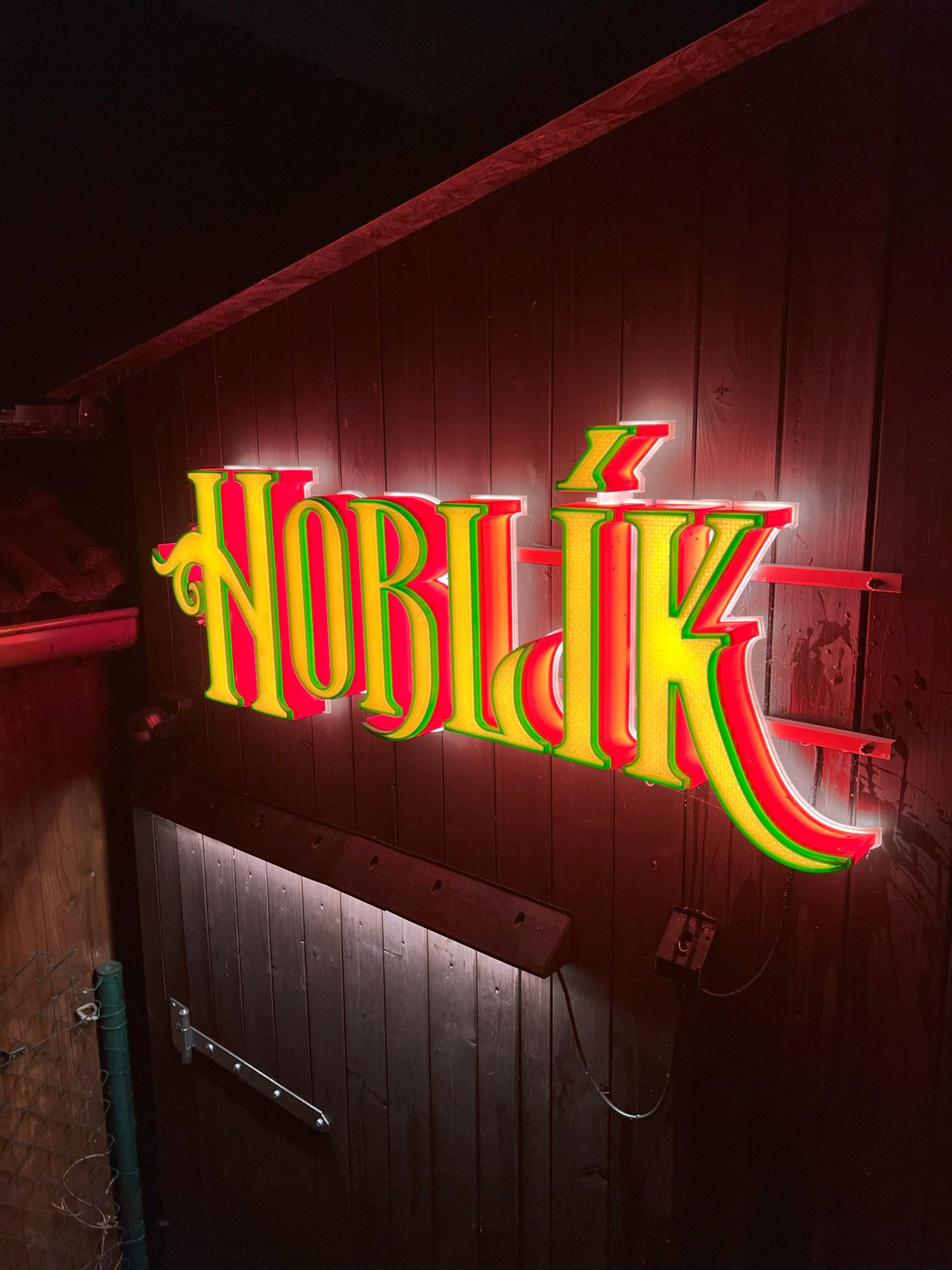
Real signs, printed and installed. Some of them have been outdoors since 2022.
Learn it in minutes
Manuals, tips and short how-to guides for every add-in.
Questions?
Write to info@aberamax.com. You get an answer from the person who writes the add-ins.